

Configure Entry Bubbling
- 29 Jan 2024
- Print
- PDF
Configure Entry Bubbling
- Updated on 29 Jan 2024
- Print
- PDF
Article summary
Did you find this summary helpful?
Thank you for your feedback!
Purpose: Practice configuring entries to bubble up and bubble down between areas.
Task: Configure entries in the top-level area with a status of Safety to bubble down to subareas, then create an entry and confirm it bubbles down.
Steps:
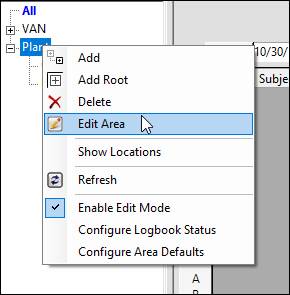
Make sure edit mode is enabled. Right-click the top level area and select Edit Area.
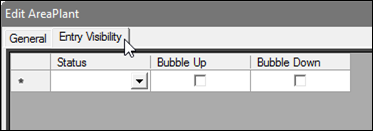
Switch to Entry Visibility tab.
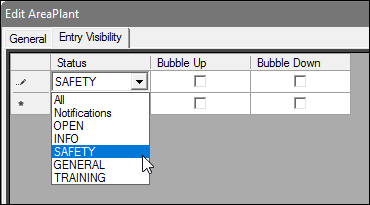
Open the drop-down menu in the Status column and select SAFETY.
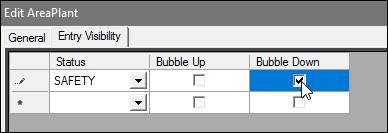
Check Bubble Down.
Click OK.
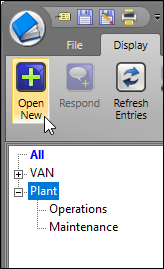
Make sure the top-level area is selected, then click Open New on the Display tab.
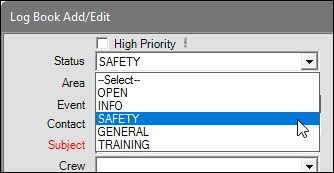
Open the Status drop-down menu and select SAFETY.
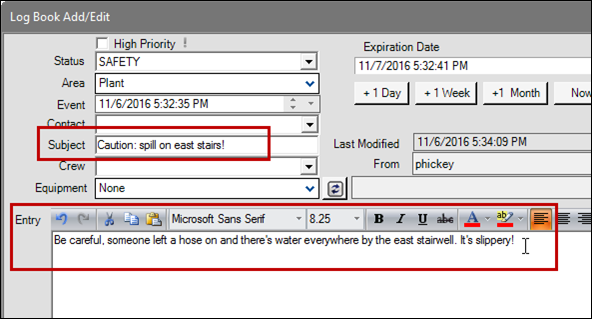
Enter a Subject and type a custom comment in the Entry field.
Click Save.
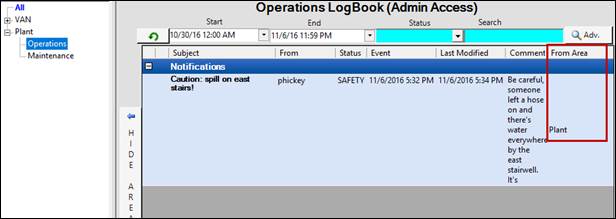
Go to a sub area to see the entry that has bubbled down. Notice the From Area column indicates the entry’s area of origin.
Was this article helpful?