

Ribbon
- 31 Jan 2024
- Print
- PDF
Ribbon
- Updated on 31 Jan 2024
- Print
- PDF
Article summary
Did you find this summary helpful?
Thank you for your feedback!
Alarm List’s ribbon has these tabs: File, Display, Windows, and Help. The ribbon also has a QAT. Double-click a tab name to hide or show the ribbon.
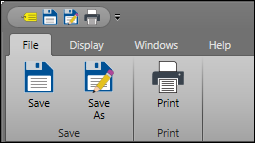
File Tab
Save: Saves the file in its current state and location.
Save As: Clicking this button launches the file browser. Here, the file can be saved in a new location and/or with a new name.
Print: This button launches the print window. Here the print job can be configured before printing the document.
Display Tab
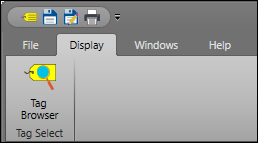
Tag Browser: Opens the Tag Browser.
Windows Tab
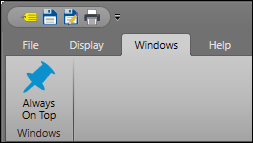
Always On Top: Forces the window to stay at the front of the screen.
Help Tab
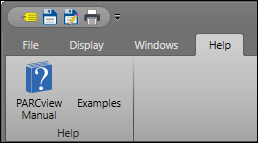
PARCview Manual: Opens the help manual for PARCview.
Examples: Opens the PARCview training videos.
Quick Access Toolbar
The Quick Access Toolbar consists of buttons that have been added from the ribbon bar as a shortcut. To add a button to the toolbar, right-click on the button and select Add to Quick Access Toolbar.
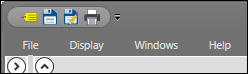
Tag Browser: Opens the Tag Browser.
Save: Saves the file in its current state and location.
Save As: Clicking this button launches the file browser. Here, the file can be saved in a new location and/or with a new name.
Print: This button launches the print window. Here the print job can be configured before printing the document.
Was this article helpful?